CPU vs GPU Bottleneck: What It Is and How to Fix It
You've just upgraded your graphics card and you're expecting massive performance gains. Instead, your frame rates barely budged. Or maybe you're seeing your CPU usage sitting at 99% while the GPU lounges at 60%. Something's wrong — and the culprit is almost certainly a bottleneck.
Let's break down what that actually means, how to figure out which component is bottlenecking you, and what you can actually do about it.
What Is a Bottleneck?
In a gaming PC, your CPU handles game logic, AI, physics, and feeding data to the GPU. Your GPU handles rendering — turning that data into the pixels on your screen. For the best performance, you want both working hard at similar utilization levels.
A bottleneck occurs when one component finishes its work faster than the other and has to wait. The slower component limits what the faster one can achieve. Think of it like two workers on an assembly line — if one packs boxes three times faster than the other fills them, the fast worker just stands around waiting.
A 100% GPU utilization rate is actually what you want — it means your GPU is working as hard as it can. A problem occurs when your CPU is at 100% and your GPU is sitting at 60–70%, because that means the CPU can't feed work to the GPU fast enough.
CPU Bottleneck vs GPU Bottleneck
CPU Bottleneck (CPU-Limited)
Signs you're CPU-limited: your CPU usage is at or near 100% during gameplay, your GPU usage is noticeably lower (50–70%), and your frame rates are inconsistent with frequent stutters. This is common in open-world games with lots of NPCs, simulations, or complex AI — think cities in GTA VI, large battles in Total War games, or anything with heavy physics.
CPU bottlenecks are also common when you have a high-end GPU paired with an older or weaker CPU. An RTX 4090 paired with an Intel Core i5-8400 is an extreme example — the GPU can render frames much faster than the CPU can prepare them.
GPU Bottleneck (GPU-Limited)
Signs you're GPU-limited: your GPU usage is near 100%, your CPU usage is moderate (40–70%), and your frame rates are limited by rendering speed. This is the normal, desirable state for gaming — it means your GPU is the limiting factor, which is appropriate since it's usually the more powerful and expensive component in a gaming rig.
A GPU bottleneck means upgrading your GPU will give you more frames. A CPU bottleneck means upgrading your CPU (or reducing CPU load settings) will help more.
How to Check Your Bottleneck
The best way to diagnose a bottleneck is to monitor both CPU and GPU usage while gaming. Here's how to do it:
-
1Download MSI Afterburner + RivaTuner Statistics Server (free). This combination lets you monitor and overlay real-time stats on your screen while you play.
-
2Configure the overlay to show CPU usage, GPU usage, and framerate. In Afterburner's Monitoring tab, enable "Show in on-screen display" for these three metrics.
-
3Play your game for 10–15 minutes in a demanding scenario. Don't check at the menu — load into actual gameplay with normal action on screen.
-
4Note the averages. GPU at 95–100%, CPU at 60–70% = GPU bottleneck (good, normal). CPU at 95–100%, GPU at 60–70% = CPU bottleneck (needs addressing).
How to Fix a CPU Bottleneck
Increase Your Gaming Resolution
This sounds counterintuitive, but bumping from 1080p to 1440p (or 1440p to 4K) shifts more of the workload onto the GPU, which often relieves a CPU bottleneck. Your CPU does roughly the same amount of work regardless of resolution — the GPU does more. This helps balance utilization without buying new hardware.
Reduce CPU-Heavy Settings
Some in-game settings hammer the CPU specifically: draw distance (how many objects are loaded at once), NPC density, simulation quality, and crowd density. Lowering these specifically reduces CPU load while having minimal impact on how "sharp" the game looks.
Enable XMP/EXPO in BIOS
If you have fast RAM but haven't enabled XMP (Intel) or EXPO (AMD) in your BIOS, your RAM is running at a slower speed than it's capable of. Fast RAM directly helps CPU-limited scenarios because the CPU accesses RAM constantly. This is a free performance upgrade that many people overlook.
Upgrade the CPU
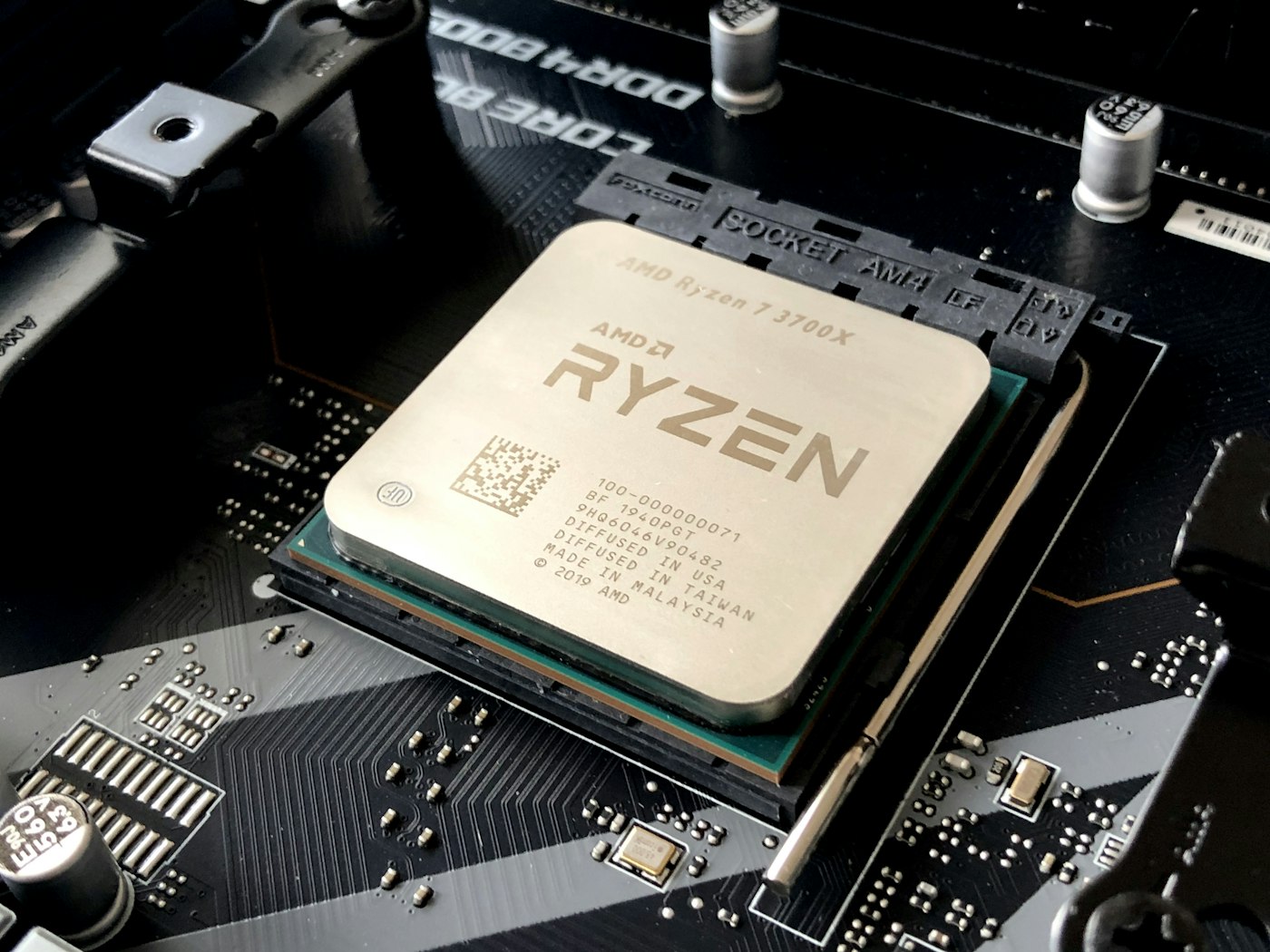
If the above options don't move the needle enough, upgrading your CPU is the direct fix. If you're on an AM4 platform, a Ryzen 5 5600X or 5800X3D (the 3D V-Cache version is exceptional for gaming) can be a significant upgrade without needing a new motherboard. If you're on a very old platform, it might be time for a full platform upgrade.
There are websites that claim to calculate bottleneck percentages based on your CPU/GPU pairing. These are almost universally inaccurate — they can't account for the specific games you play, your settings, your RAM speed, or your resolution. Use MSI Afterburner instead for a real diagnosis.
The Takeaway
Most gaming bottlenecks are GPU bottlenecks, which is the correct state — it means your GPU is the performance limiter, and upgrading it will give you more performance. If you have a CPU bottleneck, start with the free fixes (resolution, settings, XMP/EXPO) before spending money. And if you're building a new PC from scratch, try to keep your CPU and GPU in the same performance tier to avoid obvious mismatches.